DISCLAIMER: While none of the below techniques are destructive it does make sense to try fixing these issues before or after work hours to prevent impacts on the daily work of the staff. Most of the tests outlined below are quick enough (take a few minutes) unless otherwise noted. Also, it’s always good to reach out to PowerBroker support with issues since they’re experienced with debugging similar issues as well. The document below is meant to help try and narrow down the cause of the issue, to help reduce the time it takes to get back running.
Setting up the initial sync
The rest of the document assumes you had already gone through the steps of getting initial sync running. If at any point your sync was running in the past, you can skip this section.
- Get the license from PowerBroker
Reach out to PowerBroker Sales to get the license file.
Follow their instructions on installing the license. - Please make sure you have the latest PowerBroker version installed
The latest build is 4.33.22
http://power-broker.com/PB4Update.htm - Input the Integration credentials obtained from Pathway
Contact Pathway support in Slack, to obtain the credentials or reach out to jovan@pathwayport.com
To input it into PowerBroker go to:
Utilities → Define Your Company Information → Integrations 3 tab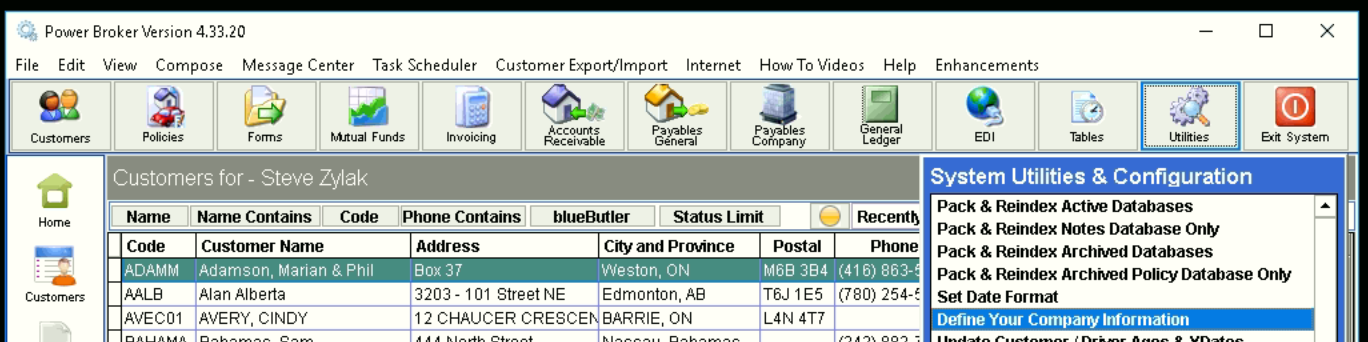
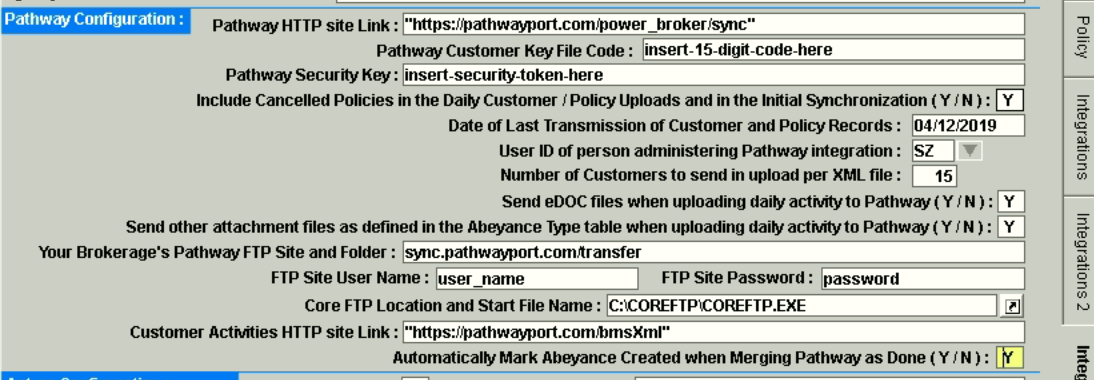
There, look for the Pathway Configuration section. It should look something like this:

-
Workstation settings
All workstations accessing the PowerBroker must have the following short date format: YYYY-MM-DD and the region must be set to English (Canada).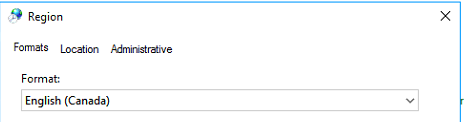
Things to keep in mind:
- If you haven’t installed CoreFTP yet, you should set:
Send Edoc files when uploading daily activity to Pathway (Y/N): to "N" and,
Send other attachment files when uploading daily activity to Pathway (Y/N): to "N" as well.- Take care when copying the credentials in, make sure there aren’t any extra spaces or characters in the passwords or URLs
- Take care when entering the URLs. Some of them require quote marks, and others must not have them. Refer to the info provided by the Account manager and copy the info exactly as provided.
NOTE: we will talk about CoreFTP set up in a separate section
Setting up CoreFTP for the Edocs, Attachments, and Abeyances
If you want to use any sort of files or Abeyances with the integration you have to have CoreFTP set up. You only need to set it up on the computer or server that will run automatic or manual syncs. Each license is $25 at the time of writing this.
- Purchase CoreFTP license
Go to this page to buy a license: http://www.coreftp.com/order/purchase_client.html
You need the Single User Standard client license. If you want to run this on multiple machines, but multiple licenses. Go through the payment steps, and you’ll receive the license file in your email inbox.
- Install CoreFTP
Install the CoreFTP version from this link (important!): www.coreftp.com/download/archive/index.php?dir=/1891
or you can use the alternative link: http://www.coreftp.com/download/archive/1891/CoreftpSetup64.exe
That’s the only version fully tested with PowerBroker. Install it to this path: C:/CoreFTP/ (also very important!) - Activate license
To license your installed CoreFTP, you will need the license file you received via email, after Step 1 of this section.
Open up CoreFTP and go to:
About → Register → From FileSelect your license file, and OK. It should show as registered the next time you open CoreFTP. You may close it now.
- Update settings in PowerBroker
Go to the settings page for Pathway, under:
Utilities → Define Your Company Information → Integrations 3
Once there, to enable the transmission of eDocs, please adjust the following lines:
Send Edoc files when uploading daily activity to Pathway (Y/N): to "Y"
Send other attachment files when uploading daily activity to Pathway (Y/N): to "Y"
Automatically Mark Abeyance Created when Merging Pathway as Done (Y/N): to "Y"
Click Return, on the top right, to go back to the PowerBroker home screen.
Testing the sync
First, we test the manual syncs before moving onto the daily sync set up, as we can catch potential issues in this step.
- Sync a single Customer (test)
Go to any Customer screen, perhaps your own, and find the Pathway button near the top.
Click it, and select the “All of the Customer eDOCSs” if you want to test out the Edoc transfer.
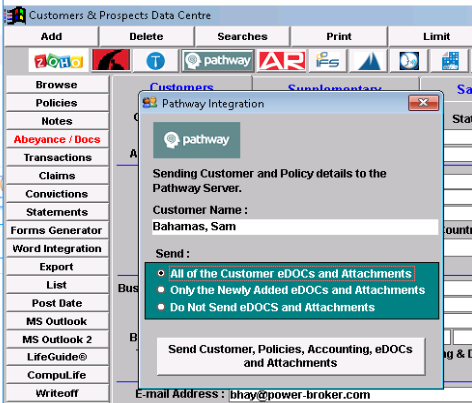
Hit the “Send” button. First, a “notification 200” will popup.
That means it’s ok. Right after that, CoreFTP should open up to do its transfer as well.
Let it finish.Once it’s done, you have a “Delete temporary files” popup – select “Yes”.

-
If this throws errors, please take a screenshot for reference, and refer to the Common Errors section. If there are no errors listed, continue.
-
Perform full manual sync, without Edocs
Now we can see about doing a full sync, but without eDocs (as we don’t want to transfer all the Edocs right now).
- First, make sure the:
Send Edoc files when uploading daily activity to Pathway (Y/N): to "N" and
Send other attachment files when uploading daily activity to Pathway (Y/N): to "N"- Now, go to EDI → Transmit Customers to Pathway

Once here, you can hit Send New/Changed Customers.
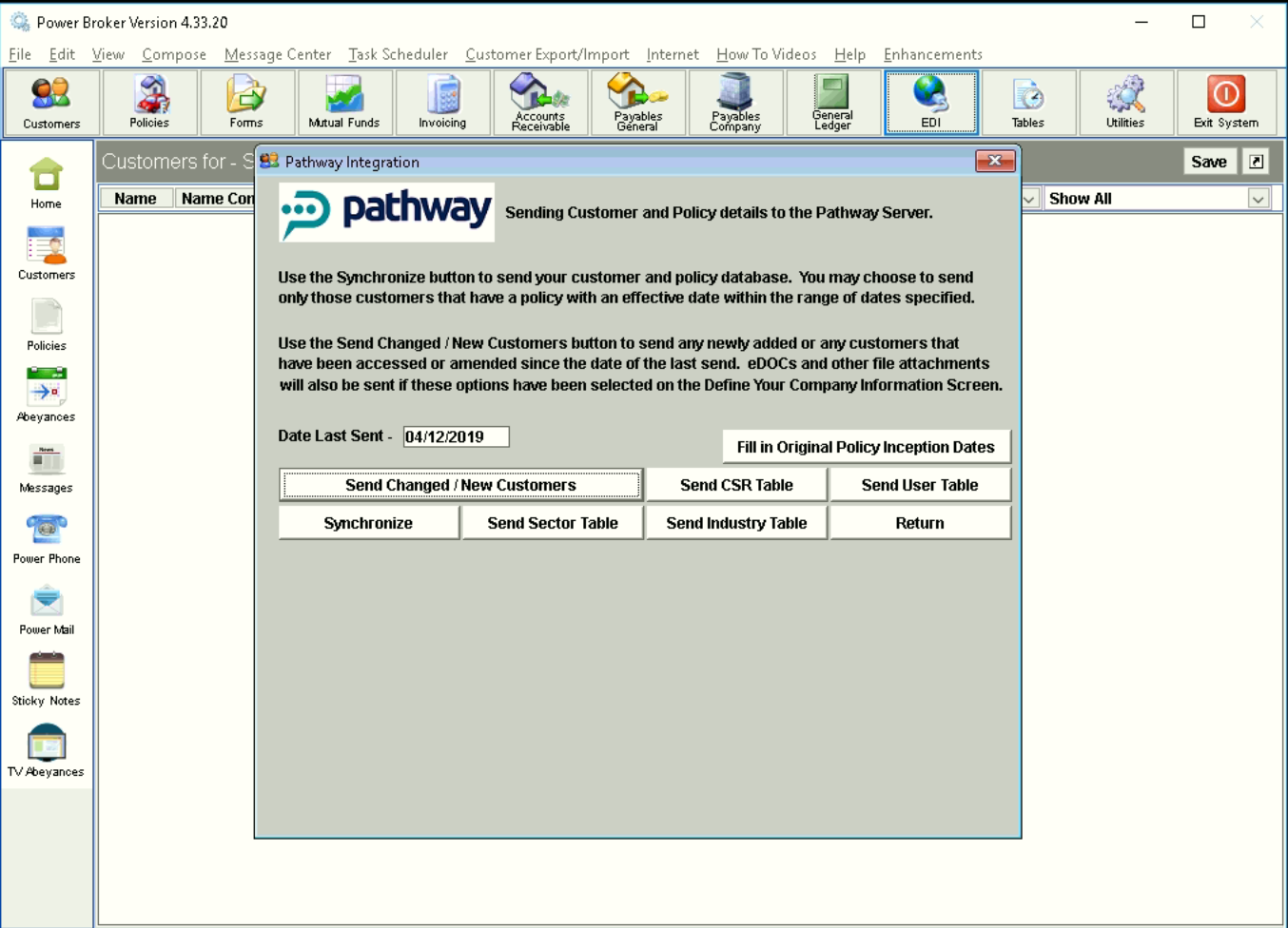
Let it finish, it will take up to an hour, depending on your internet speed, but usually it finishes within 15 minutes. It won’t affect anyone logged in, but it might get paused if it tries to transmit a file that’s in use.
If there are any errors, refer to the Common Errors section - Schedule full eDoc sync [optional]
If you want to have the last years worth of documents in your Pathway account, you will need to do this.
- The machine that runs this will be busy for the entire day, possibly up to 15 hours
- Other users will not be affected
- Best to do this during the weekend, or on a machine, you don’t need during a full day and start in the morning
To do this, make sure the “Send Edoc files...” option in the Integration settings is set to Y, and go to the manual sync page:
EDI → Transmit Customers to Pathway
From there, change the “Date last sent” to one year back, for example, 07/07/2018
Now hit “Send New/Changed Customer” and let it finish.
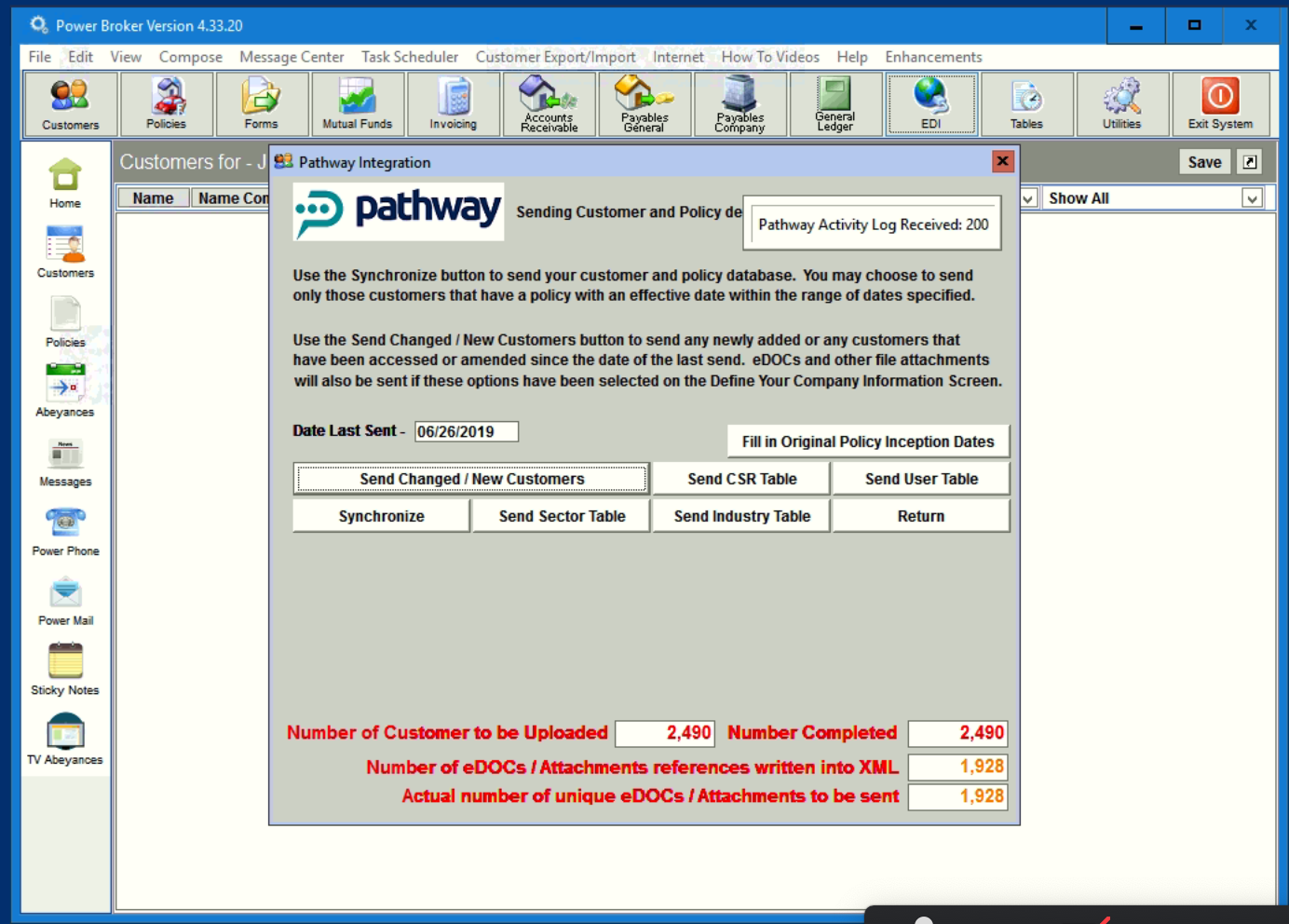
- Set up the Daily Sync
If all of the above is fine, follow PowerBroker instructions for the daily sync script found here: http://power-broker.com/windowstask.htm
Make sure to replace all instances of “clientdesk” with “pathway” when following the instructions, and to use a partition letter that makes sense for your system.
Once the Windows task scheduler is set up, tested and returns 0x0 as a result,
please make sure to set the
PowerBroker's internal Task Scheduler to Transmit Customers to Pathway.
PowerBroker > Navigation > Task Scheduler
Time needs to be set 5-10 minutes, after the Windows Task Scheduler.
IMPORTANT: Please make sure there are no background processes or other scheduled tasks happening at the same time as the PowerBroker task.
It takes 15-20 minutes for the sync to complete, and for the CoreFTP to transfer the files.
It is highly recommended to leave up to 30 minutes before the next scheduled task is set to run.
For example: server backup, database maintenance, etc. - Test the Daily Sync
You can do the first test manually:
- Go into the powerbroker bro folder, for example, P:/bro
- find the “pathwaytask.exe” file
- double click it to run it right now
- Wait 5 seconds for the task runner to start, and you should see this screen:
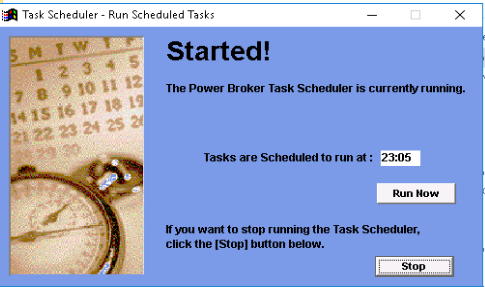
- Hit “Run Now” to trigger it now. You should not see any errors at this point.
Common Errors
- CoreFTP is not installed
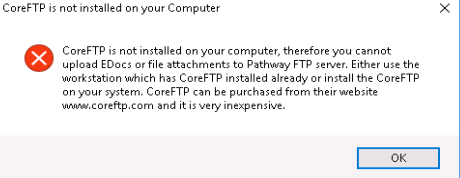
If you get this error, it means you must either set up CoreFTP, or you must disable the Edoc and Attachment syncs on the Integrations page within PowerBroker. You need to set them to N.
It’s also possible that the CoreFTP path is set incorrectly on the computer.
-
CoreFTP trial period had expired

-
Date Format is incorrect
You might receive a big popup telling you to change the short date format on your computer. This is a PowerBroker requirement for any computer running the sync. The Short Date format on your computer needs to be “YYYY-MM-DD”. Just follow the instructions displayed within PowerBroker.
- The region must be set to English (Canada) for Canada users
- Failed to sync 401
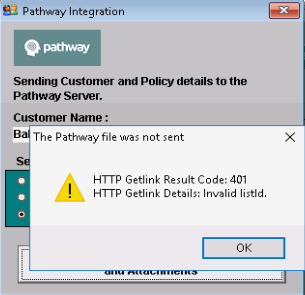
If you receive an error like this, then your Pathway settings are incorrect. Double-check the parameters on the Integrations page within PowerBroker.
- PATHWAY_SEND.DESTROY
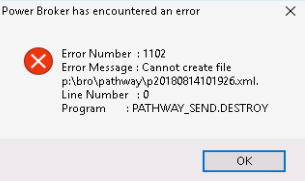
If you get an error similar to this, make sure your PowerBroker path settings within PowerBroker are correct, and that the file location mentioned in the popup exists. Sometimes it might mean the bro folder needs to be mounted to another partition(you will need help from IT for this).
- Utillog.dbf locked
If you get this error, you are running an older PowerBroker version and should upgrade to get the fix.
Contact Pathway for assistance
For assistance with our engineers, please reach out in slack, or schedule a time using this link:
https://calendly.com/integration-pathwayport/integration-setup